Hugo Theme Development Diary
Update (2025-01-05)
With so many AI-assisted programming tools available now, paired with IDEs like Cursor/Windsurf, developing a blog theme isn’t difficult. Just clearly explain your requirements to Claude in Cursor, and you’ll generally get good responses.
Note: This blog uses the Hugo theme I developed. The following content isn’t detailed, but developing your own theme isn’t difficult with AI assistance nowadays. Hugo provides many built-in template variables that easily implement the basic features a blog should have. For detailed tutorials, check out YouTube and other platforms. Of course, you can also look at my GitHub source code to see how I built this personal blog system.
At the beginning of the month, when submitting my thesis mid-term report, I mentioned abandoning Hugo in favor of Next.js to complete my thesis. To better demonstrate Next.js’s advantages over Hugo, I decided to develop a Hugo blog theme to explain during my thesis defense later.

From March 14 to March 16, over about two days, referencing multiple tutorials along with ChatGPT and New Bing, I finally developed my own Hugo blog theme. Here I’ll record the Hugo blog theme development process.
Using the hugo new theme hugo-simple-theme command generates a folder named hugo-simple-theme in the themes folder.
The initial directory structure looks like this:
hugo-simple-theme (Hugo theme)
├── archetypes (Hugo theme article templates)
├── layouts (Hugo theme layout files)
├── static (Hugo theme static files)
├── LICENSE (Hugo theme license information)
└── themes.toml (Hugo theme metadata)
The key focus is the layouts folder. The remaining files can be added gradually.
The layouts folder directory structure looks like this:
layouts
├── _default (default page layout folder)
│   ├── baseof.html (base template for all pages)
│   ├── list.html (template file for list pages)
│   └── single.html (template file for single pages)
├── partials (partial page layout folder)
│   ├── head.html (webpage head)
│   ├── header.html (webpage main navigation bar)
│   └── footer.html (webpage footer information)
├── 404.html (website's 404 error page)
└── index.html (website's homepage)
Technologies I used for this development:
-
HTML
-
CSS
-
JavaScript
This blog post focuses on explaining the code in the layouts/_default folder.
baseof.html
The base template for all pages—baseof.html code is as follows:
|
|
This code divides the page into 4 parts:
-
head tag section
-
page top navigation bar
-
page main content
-
page footer
CSS class name explanation for the body tag:
d-flex is one of the Bootstrap CSS classes, used to specify an element as a flex container, allowing child elements to use flex layout for arrangement.
flex-column is a flex container subclass, used to specify that flex container child elements are arranged vertically.
min-vh-100 is the CSS viewport height (vh) unit, used to specify the element’s minimum height as 100% of the viewport height. This is typically used to achieve a full-screen effect, keeping the element’s height always occupying the entire viewport height.
CSS class name explanation for the outer main content section:
- flex-fill: Sets the parent element .container-fluid’s height to 100%, filling available space.
- container-fluid: Sets the element’s width to 100% to occupy the entire browser window width.
- mx-auto: Centers the element.
- mt-3 mb-5: Sets top and bottom margins for vertical positioning.
Note: The min-vh + flex-fill combination is crucial. Without it, when homepage content is sparse, the footer element would float upward. Last year, a personal site I built with Vue had this footer floating issue.
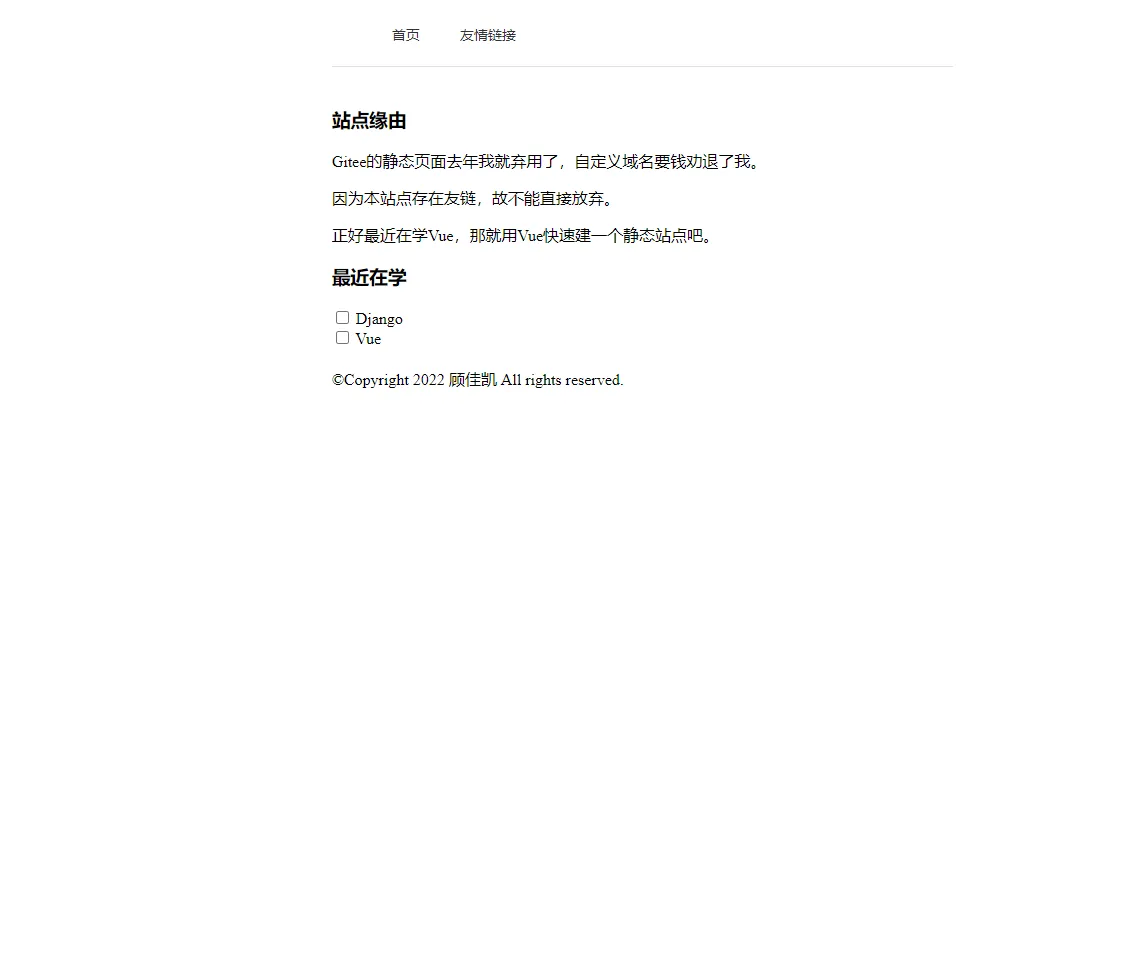
In the main content section, I divided the page into a main block and sidebar using Bootstrap’s grid layout.
Finally, there’s the footer element and some JS script loading.
sidebar.html
The main block and sidebar are displayed on medium and large screens; only the main block is displayed on small and extra-small screens.
If the notoc parameter in the markdown document’s front matter is true, the sidebar is not displayed.
|
|
single.html
This code defines how single pages are displayed, i.e., how markdown article pages are shown. The title section is wrapped in a border, tags are added at the end of the article, and finally utterances comments are inserted.
|
|
terms.html
In the main template of terms.html, a $type variable is first defined, then .Data.Terms.Alphabetical is iterated using range to get each category’s name and count, storing them in $name and $count variables.
In each iteration, the with statement calls Hugo’s GetPage function to get the link to a specific category page, then uses this link to generate a card and inserts the name and count into the card’s HTML code.
In the card, .Name accesses the specific page’s name, and $count accesses that category’s article count - both are inserted into the generated HTML. Since the card is generated within the with statement, .Name must be used within this scope to access the specific page’s name.
|
|
list.html
Since I decided to display the blog list on the homepage, list.html doesn’t need to be redefined.
Since we need to display all blog posts containing a specific tag under that tag, list.html is necessary.
This code uses an unordered list to sequentially display all articles under a specific tag.
|
|
rss.xml
Copied someone else’s RSS full-text output code.
Others
I won’t elaborate on the remaining code. For details, see my GitHub repository hugo-simple-theme. If you don’t understand something, ask ChatGPT and New Bing.
Document Info
- License: Free to share - Non-commercial - No derivatives - Attribution required (CC BY-NC-ND 4.0)