Solution for ChatGPT Android Date and Time Error
Update (2024.06.21)
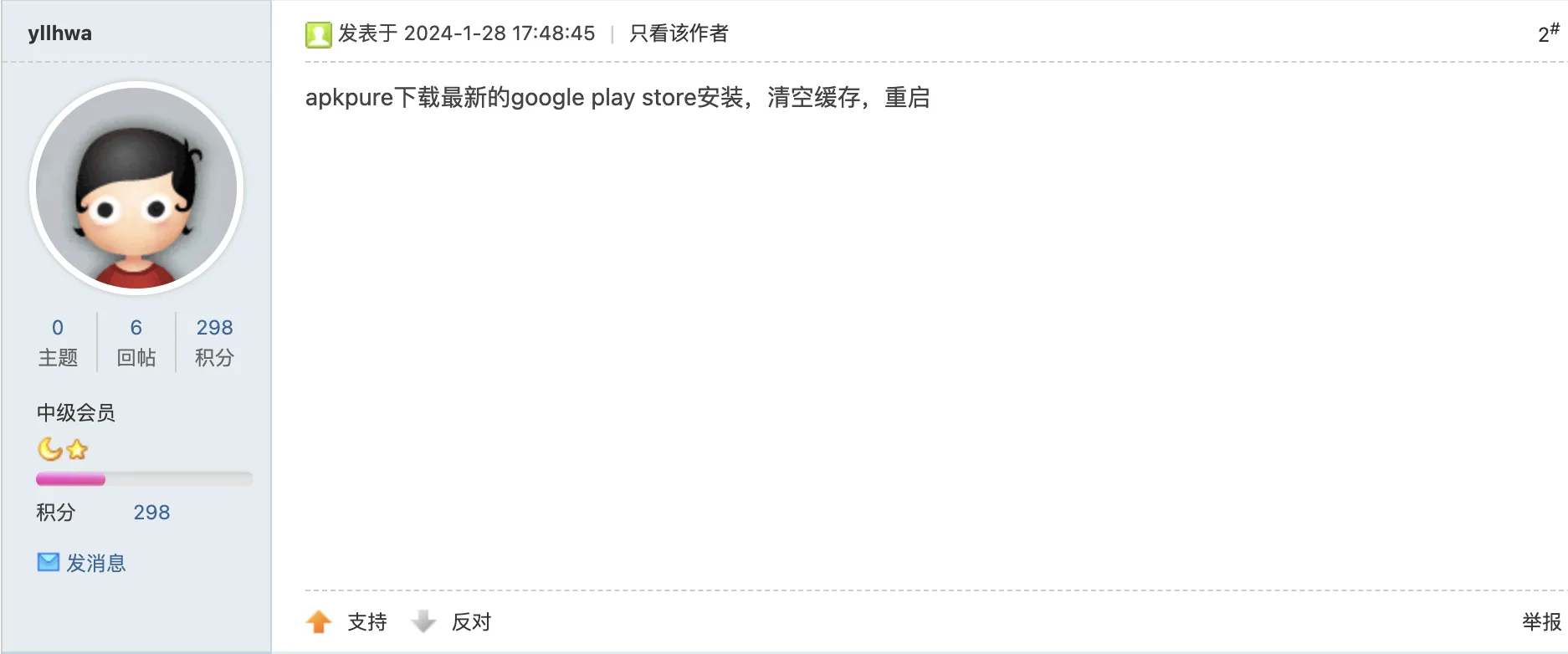
This morning during class, I opened the ChatGPT Android client on my Pixel 7 and got the date and time error again. After troubleshooting with the following approach, it still showed errors. After searching, I found this suggestion from a user on HostLoc. After clearing the relevant cache and logging in again, it worked normally. via
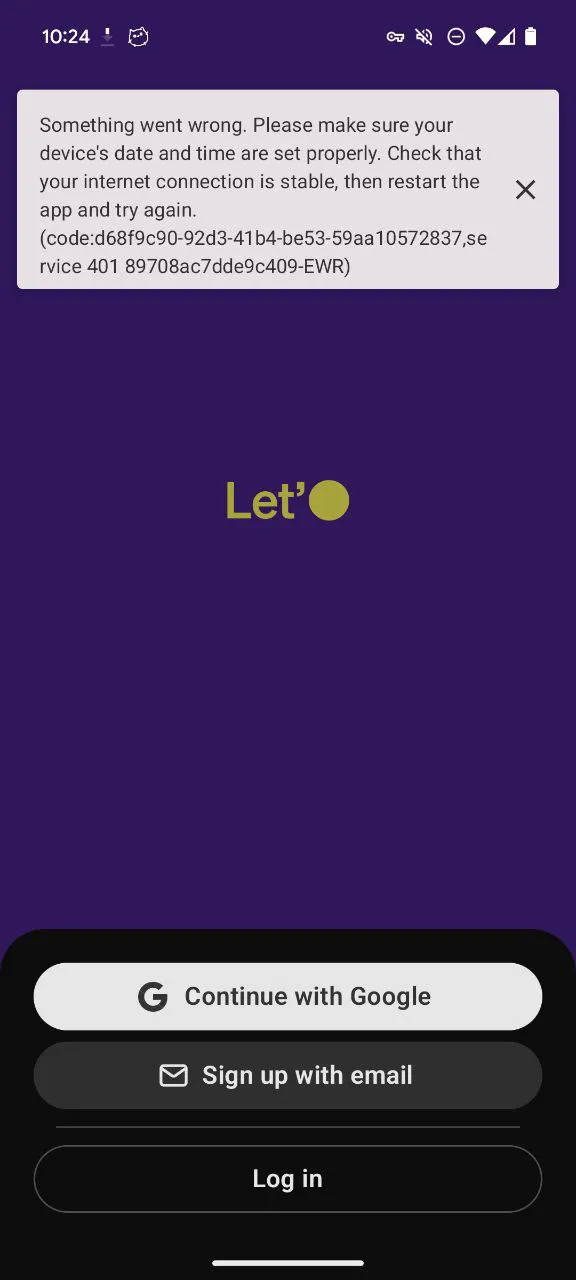
The initial error page looked like this.
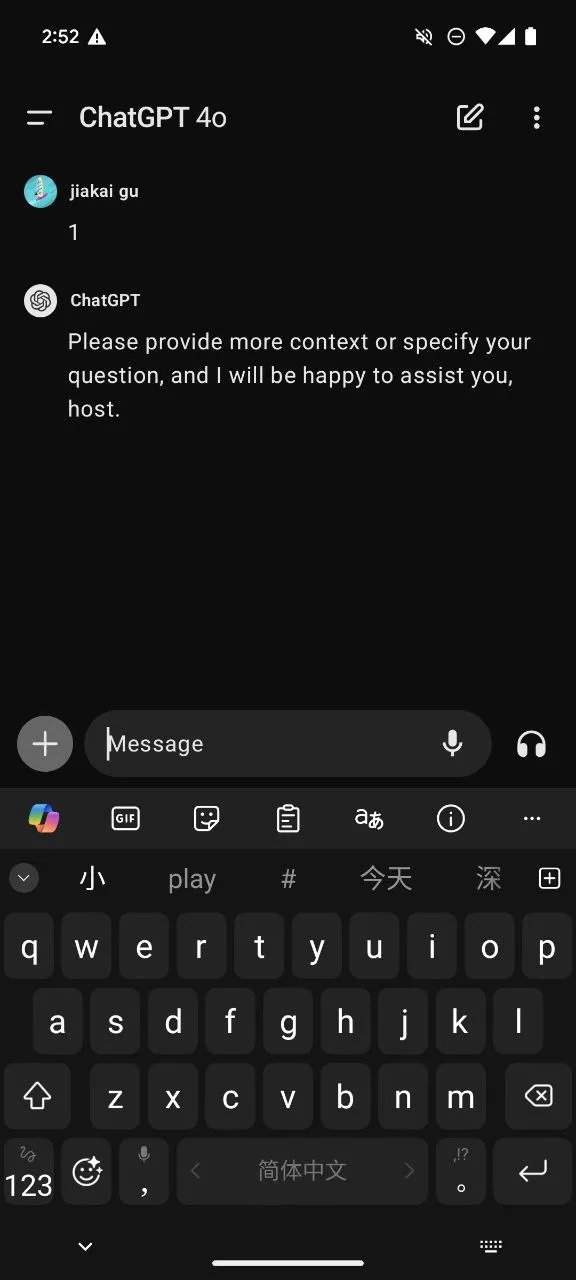
After clearing cache, the GPT mobile client works normally again.
Update (2024.1)
A few days ago, a neighbor’s college student came to visit during their break. His Xiaomi 12 phone (which originally used Huagu Suite to install Google services) also had this error.
After confirming a node that supports GPT mobile was being used, it still showed the date and time error. I had him download the latest Play Store from APKPure/APK Mirror, and after that, opening the ChatGPT app no longer showed the date and time error. The likely troubleshooting approach for this error:
-
Whether the node supports GPT mobile
-
Ensure Play Store is updated to the latest version (no strict update requirements for the other two Google packages)
Update (2023.11)
On November 27, 2023, a user mentioned in this issue that wrapping their VPS with WARP to handle OpenAI-related traffic solved the date and time error. This indicates the date and time error might also be IP-related.
During summer vacation, I used Google One VPN for all OpenAI exits, but it didn’t solve the date and time error. After the GPT app update in early September, logging into the app showed no more date and time errors - the error message pointed to a link, see details in the Update (2023.09) section.
After that, I’ve been using Google One VPN as the dedicated exit for OpenAI-related requests, and the mobile GPT has had no issues and works normally. Starting this month, my OpenAI-related requests are load-balanced between Google One VPN and residential IP VPS, further ensuring GPT mobile unlocking.
The specific causes of the date and time issue might include:
-
Proxy node only unlocks GPT web, not GPT mobile [see - ChatGPT Android Error: Disallowed ISP Solution]
-
Google services issues (install the latest version of Google Services Framework compatible with your Android version, update the other two to latest)
-
As shown in
Update (2023.09), not granting phone permission toGoogle Play Services -
Issues with domestic modified Android systems
Update (2023.09)
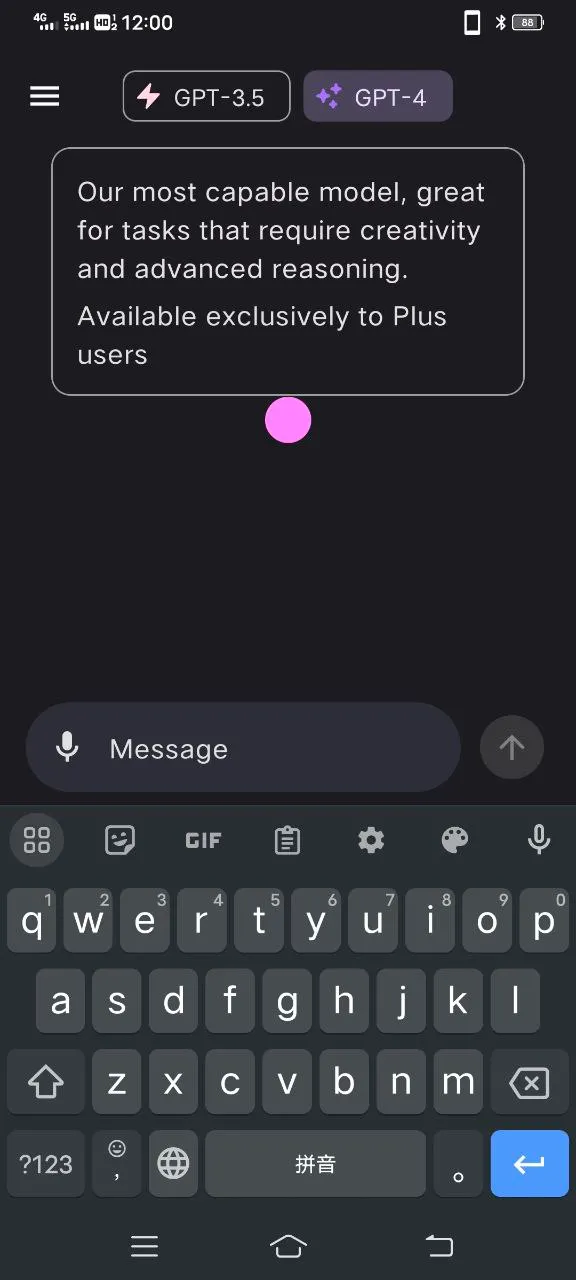
On September 2, 2023, after updating the ChatGPT app from the Play Store, opening it showed an error. After following the official tutorial to grant phone permission to Google Play Services, I successfully used the ChatGPT Android app. No more date and time errors. Official tutorial link
Background
On July 25th, the ChatGPT Android version became available for early download in the US region of Google Play Store. I downloaded the app immediately, but when logging in, I got the error shown below.
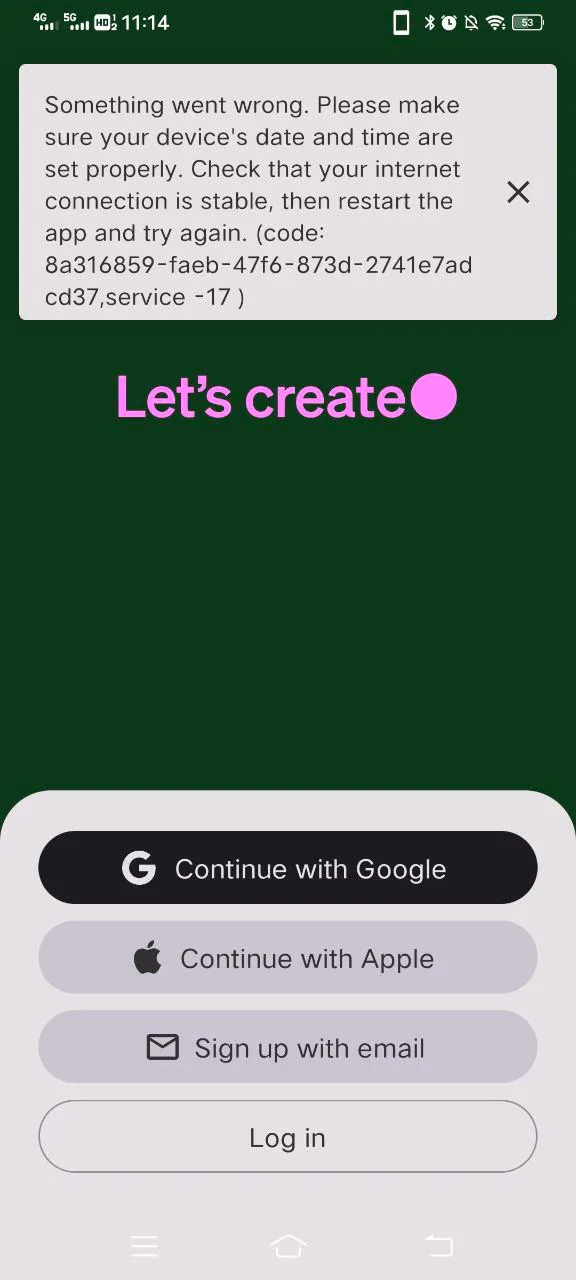
Something went wrong. Please make sure your device’s date and time are set properly. Check that your internet connection is stable, then restart the app and try again.
Those who understand some English would try changing their Android phone’s time to the proxy node’s region, so I changed my device time to my proxy node region - Los Angeles, West US. But it still didn’t help.
In this V2EX forum post, someone suggested updating Google Play. via

So I downloaded the latest version of Google Play Store from APKPure and installed it. But the date and time error persisted.
Although this method still didn’t work for my Vivo phone [with domestic Funtouch OS], it provided a clue - I started suspecting the Google services trio wasn’t updated to the latest version. [Google Services Framework, Google Play Services, Google Play Store]
Since my Vivo phone’s Android version is 10, I chose the latest version of Google Services Framework requiring minimum Android 10, installed all three at their latest versions, plus updated all apps on my phone to latest versions - still got errors.
I spent at least a day trying to solve this problem, and over the past half month, I’ve been searching for related information online.
For example, this post on NodeSeek forum has related discussions about this issue. via
Some say it’s an IP issue, others refute that it’s unrelated to IP - updating Google Play Store to the latest version solves it.

For example, a Bilibili uploader made a video where the solution to my problem was still updating Google Play Store, but this method didn’t work for me. The comments also have users who still got errors after updating Google Play Store version. via
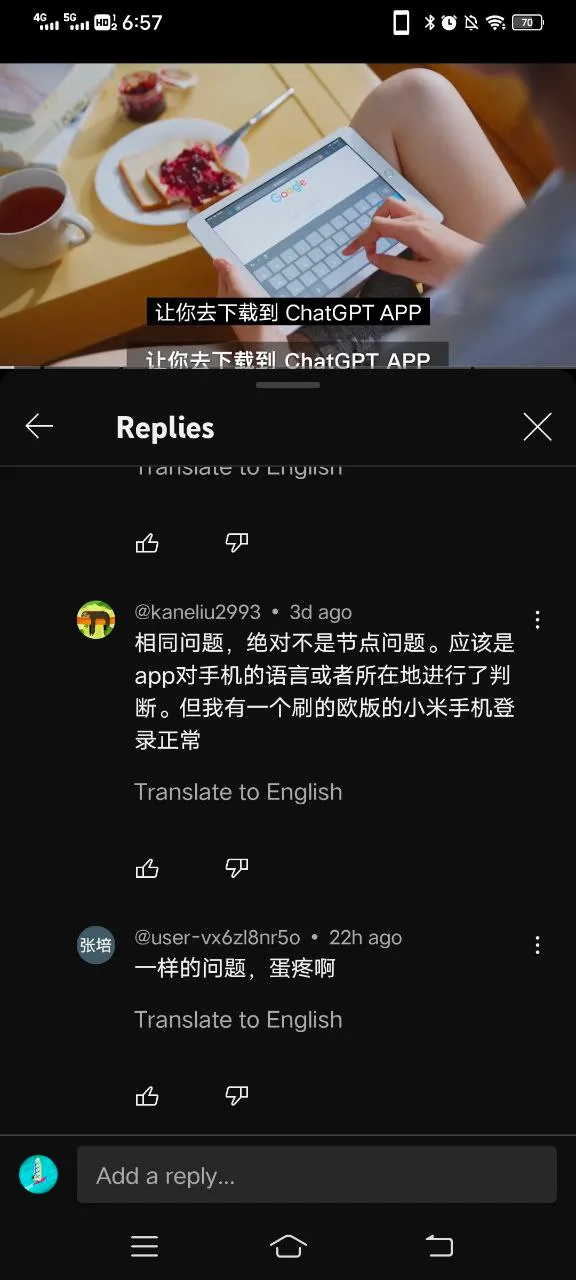
For example, YouTube comments have users saying flashed Xiaomi phones can log in.
And so on…
I still haven’t solved this problem, but I personally suspect that modified Android systems from domestic phone manufacturers mostly have this issue. Take my Vivo phone as an example - I’ve long since changed my language settings to English, changed the timezone to my proxy node’s timezone, and turned off all location services. But I estimate the modified Android system has a parameter showing the location as China, hence the date and time error.
Of course, I’ve also seen examples of Vivo phones successfully logging into the ChatGPT Android app.
If you’re like me, getting the date and time error when logging into the ChatGPT Android app on a domestic Android phone, maybe just give up on this app and focus on using the web version.
After all this troubleshooting, you can see the importance of having a US version native Android phone or an iPhone.
Note: To verify if this app validates SIM cards like TikTok, I even removed my SIM card - still got errors.
Some users say it’s an IP issue, which I strongly disagree with. Reasons:
- The web version logs in without errors while the Android app login errors - comparing the two shows it’s not an IP issue. If it were an IP issue, both should show login errors simultaneously.
- I use a soft router as a front-end proxy with Google One VPN enabled on my phone, using Google’s clean IP, and set the timezone to that IP’s location timezone - still couldn’t connect. If Google One VPN can’t solve the Android app issue, it shows it’s not an IP issue, because Google One VPN’s IP cleanliness is much better than datacenter IPs.
Document Info
- License: Free to share - Non-commercial - No derivatives - Attribution required (CC BY-NC-ND 4.0)