Solution for HXServers Network Issues
Update (2023.11.27)
HXServers has gone out of business. PayPal dispute successful, got all money back.

Update (2023.10)
After using the DD Windows script, you need to VNC into the Windows machine and set up the network IP address, subnet mask, and default gateway. Only after Windows can connect to the network can you use local RDP tools to connect.
The IP address and subnet mask can be found on Linux via the ifconfig command before running the DD Windows script, and the default gateway can be found via the ip route command. To identify which item is the IP address, subnet mask, or default gateway, you can search online or upload a screenshot to GPT-4V for assistance.
Windows installation templates in the VirtFusion panel generally have issues with Google One VPN, so you can first install Debian 12, then use DD script to convert the machine to Windows. After DD, configure the network and Windows will work normally. The IP address, subnet mask, and default gateway needed for network configuration can be found directly in the panel’s network options. (2023.11.27)
Background
HXServers performed maintenance on October 11, 2023. After this maintenance, the Windows Server that was DD’d from Linux lost its network connectivity entirely.
Yesterday, to solve this issue, I chose another contributor’s Windows image and DD’d the Linux machine to Windows Server again.
Here’s the DD script I used:
|
|
After DD, there’s still no network. Therefore, you can’t use the local Windows Remote Desktop Connection to connect to this Windows Server. You need to operate through the vendor’s VNC page, setting up the IP address and DNS in the IPv4 properties of the Ethernet adapter.
For IP address, enter the IPv4 address provided by the vendor, typically something like 165.140.8.x. The subnet mask will auto-fill to 255.255.0.0, and the default gateway should be 165.140.8.1.
DNS can be set to 1.1.1.1 (primary DNS) and 8.8.8.8 (secondary DNS), like the image below:
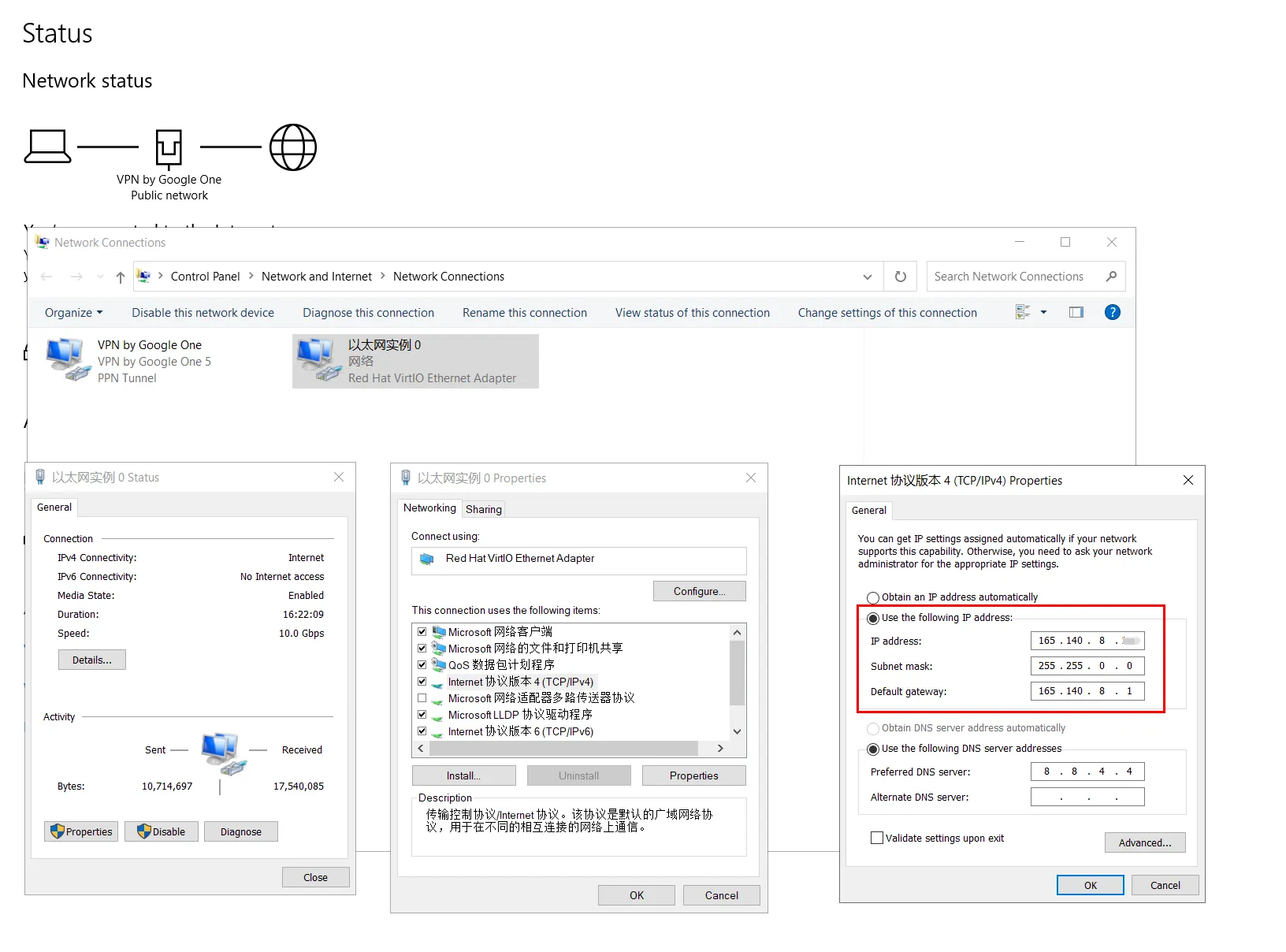
After saving, a network identification page should pop up - just click OK. After confirming the network connection is working, you can use your local Windows RDP to connect to the remote Windows Server.
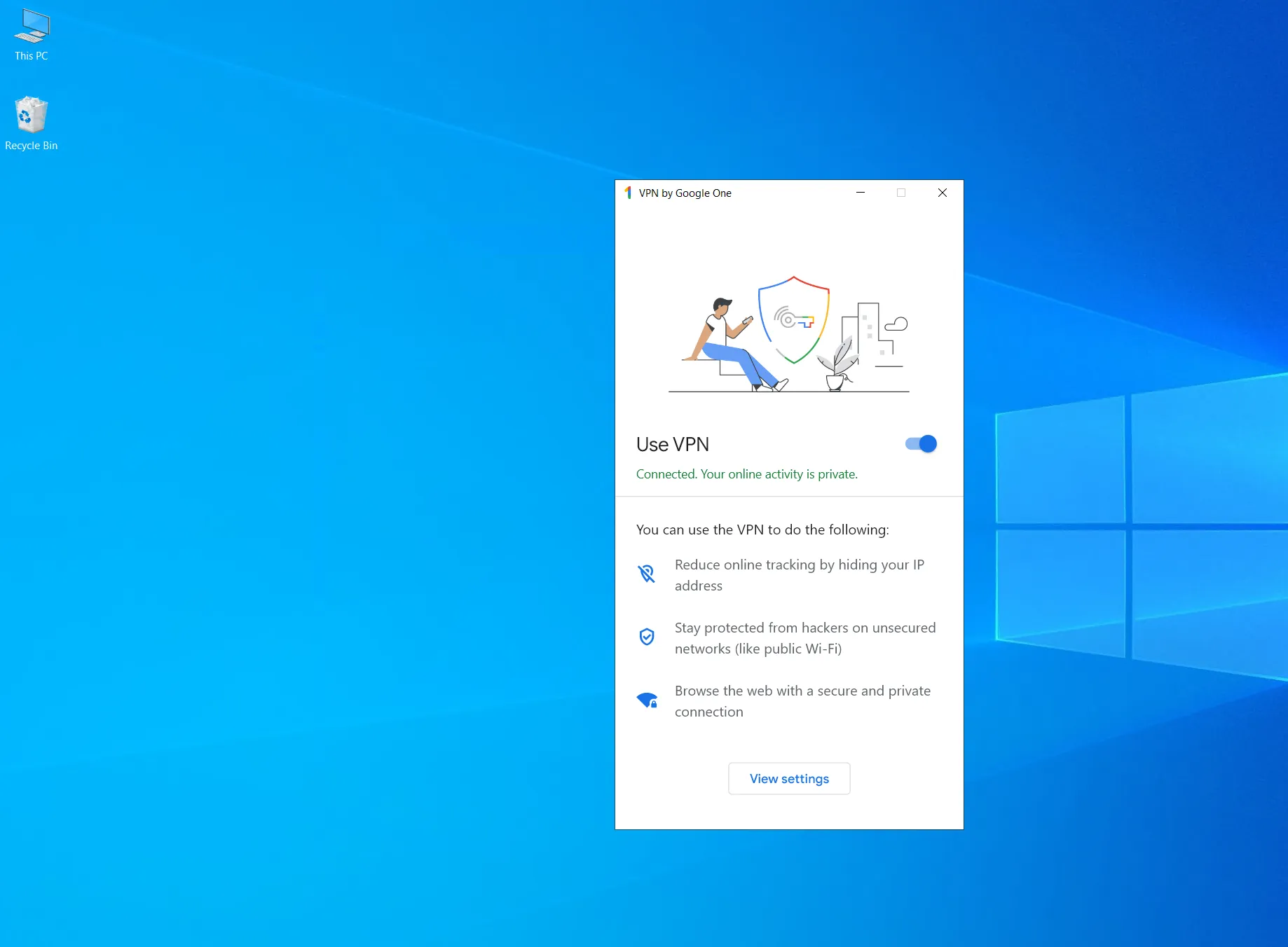
Then proceed with the standard operations for connecting to Google One VPN.
Notes:
-
This Windows Server image defaults to Simplified Chinese language. You can enable Windows Update service in Services, then change the language environment to English, timezone to the VPS location’s timezone, and region to United States. A US Windows Server environment with Chinese settings will have many restrictions, like Bing redirecting to China’s special Bing version.
-
Change the default Windows Server password. Run PowerShell as administrator, then execute the following command to change the password. [Replace the password with your own - I recommend using tools like Bitwarden to generate a random strong password]
|
|
- Change the default Windows Server port 3389. For changing ports, see this article—How To Change RDP Port on a Windows VPS
Continued Tinkering
Although the new image solved the network issue and successfully connected to Google One VPN, could the previous Teddysun image also restore Google One VPN connection by configuring network settings?
At the time, since local RDP couldn’t connect to the remote Windows Server, I accessed the Windows Server through the vendor’s VNC page [This Windows Server used Teddysun’s Windows image]. Seeing the network had issues, I directly reset the system and DD’d with the new Windows image [the method described in the Background section], without verifying whether Teddysun’s image could also restore RDP and Google One VPN connection by configuring network settings.
This morning after class, taking advantage of the free afternoon, I prepared to reset the system and verify whether Teddysun’s Windows image could continue to work on HXServers machines by configuring network settings.
Use the following command for DD operation:
|
|
Then you still need to configure the network in the vendor’s VNC page so we can use RDP to remotely connect to this Windows Server.
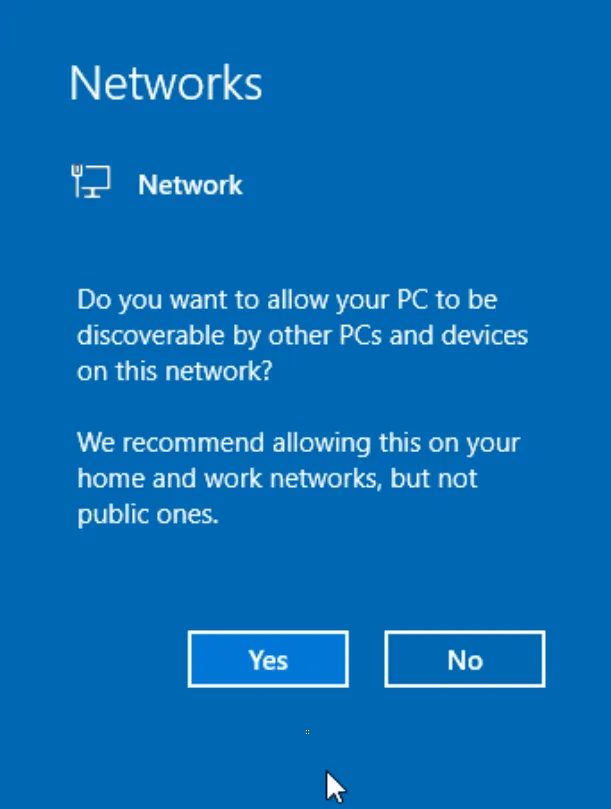
After setting up the network, click Yes to allow this Windows Server to be discovered and connect to the network.
Now you can use local RDP to connect to the remote Windows Server for operations. Indeed, after setting up the network, Google One VPN connected successfully.
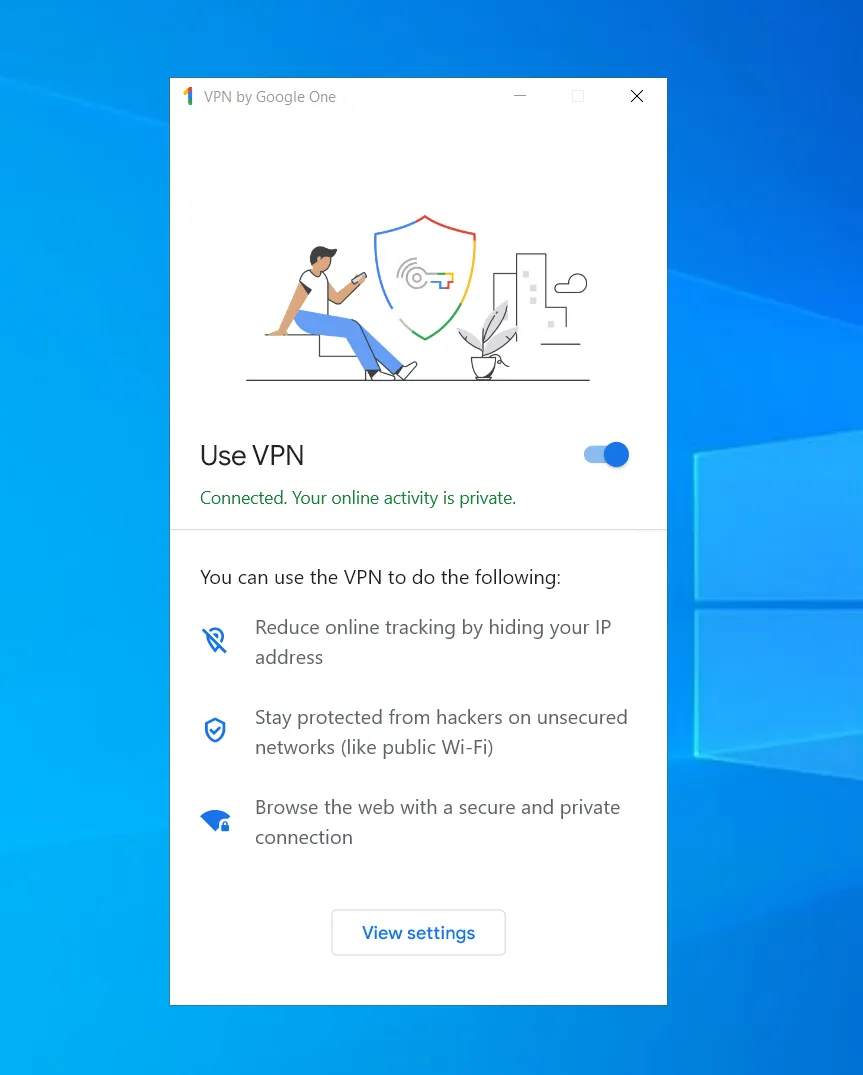
Then proceed with the standard operations for setting up nodes and changing Windows Server password and port.
The above method for restoring HXServers network by configuring network settings comes from discussions in the TG Google One group.
Document Info
- License: Free to share - Non-commercial - No derivatives - Attribution required (CC BY-NC-ND 4.0)