Experience Sharing on Ikihost IP Change Ordeal
Event Timeline
A few days ago I received an email from Ikihost VPS provider saying they would perform maintenance and change IPs in a few days. I didn’t take it to heart at the time because after the IP change, I only needed to update DNS resolution records.
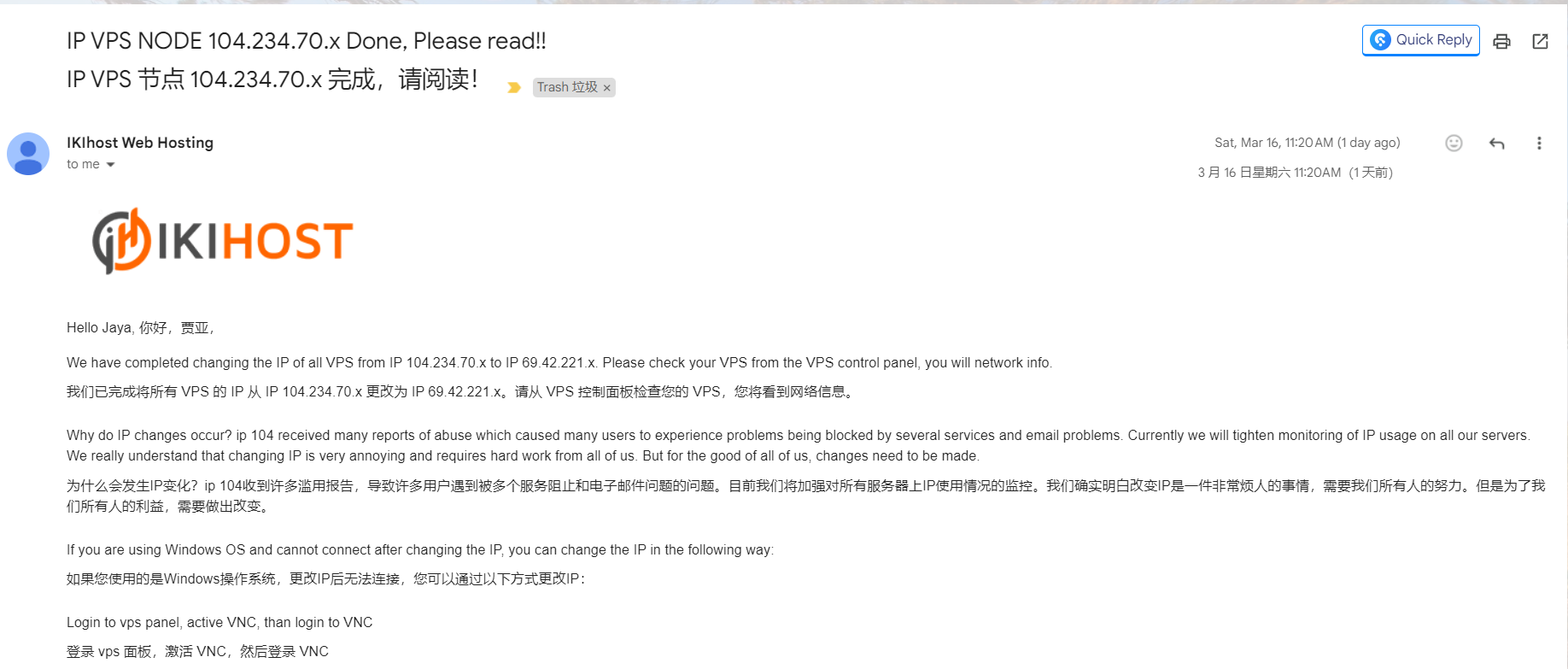
Yesterday I received the notification email from Ikihost announcing IP change completion, so I immediately went to Cloudflare’s DNS resolution, searched for the old IP address, and changed the search results’ DNS record values to the new IP address.
After completing the operation, I found all websites were down, and SSH connection also failed. Logging into the vendor’s VirtFusion VPS console, the VPS was still running, so I used VNC to log in and check, only to see this error message:
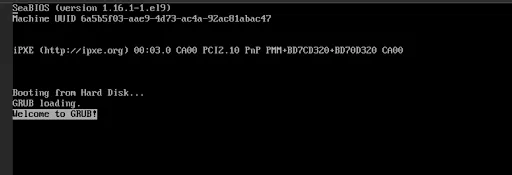
Sending the image to AI tools plus my own searching, I couldn’t find repair methods I could try, so I opened a ticket hoping to get support.
While opening the ticket, I also started preparing to extract the data inside. Unfortunately, I searched all over the VirtFusion VPS console but couldn’t find a rescue mode button.
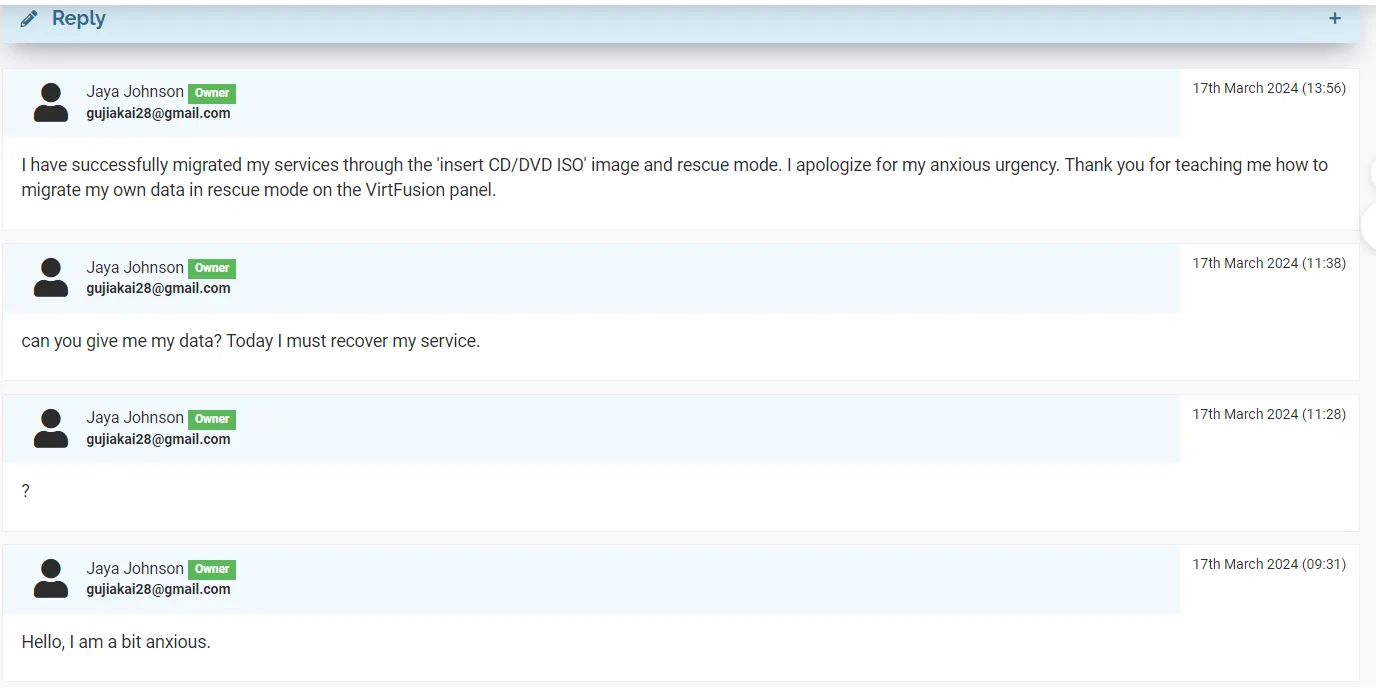
Yesterday’s battle with customer service got a reply that I could insert an ISO image and use rescue mode to extract any of my data anytime.
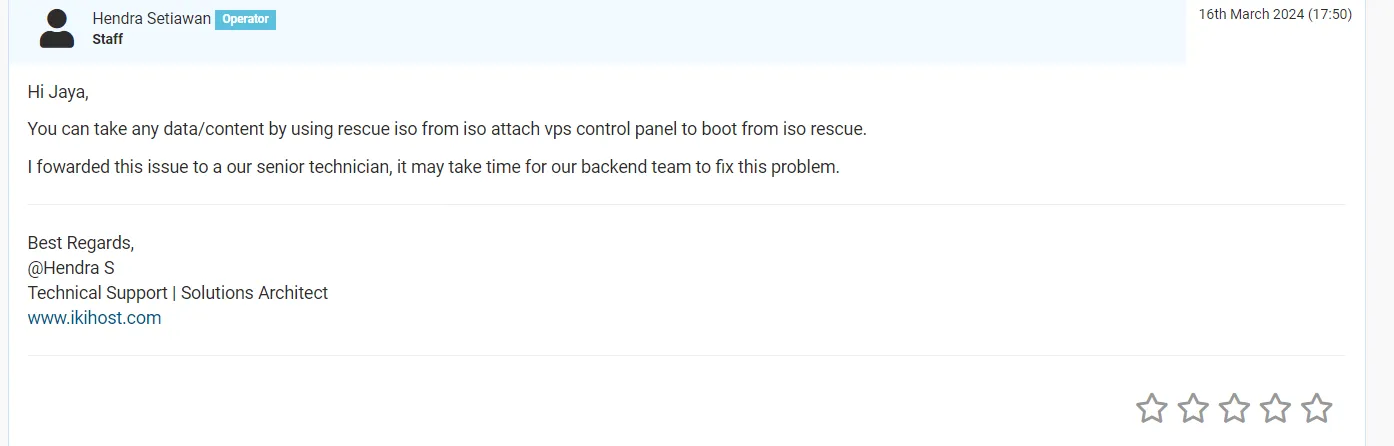
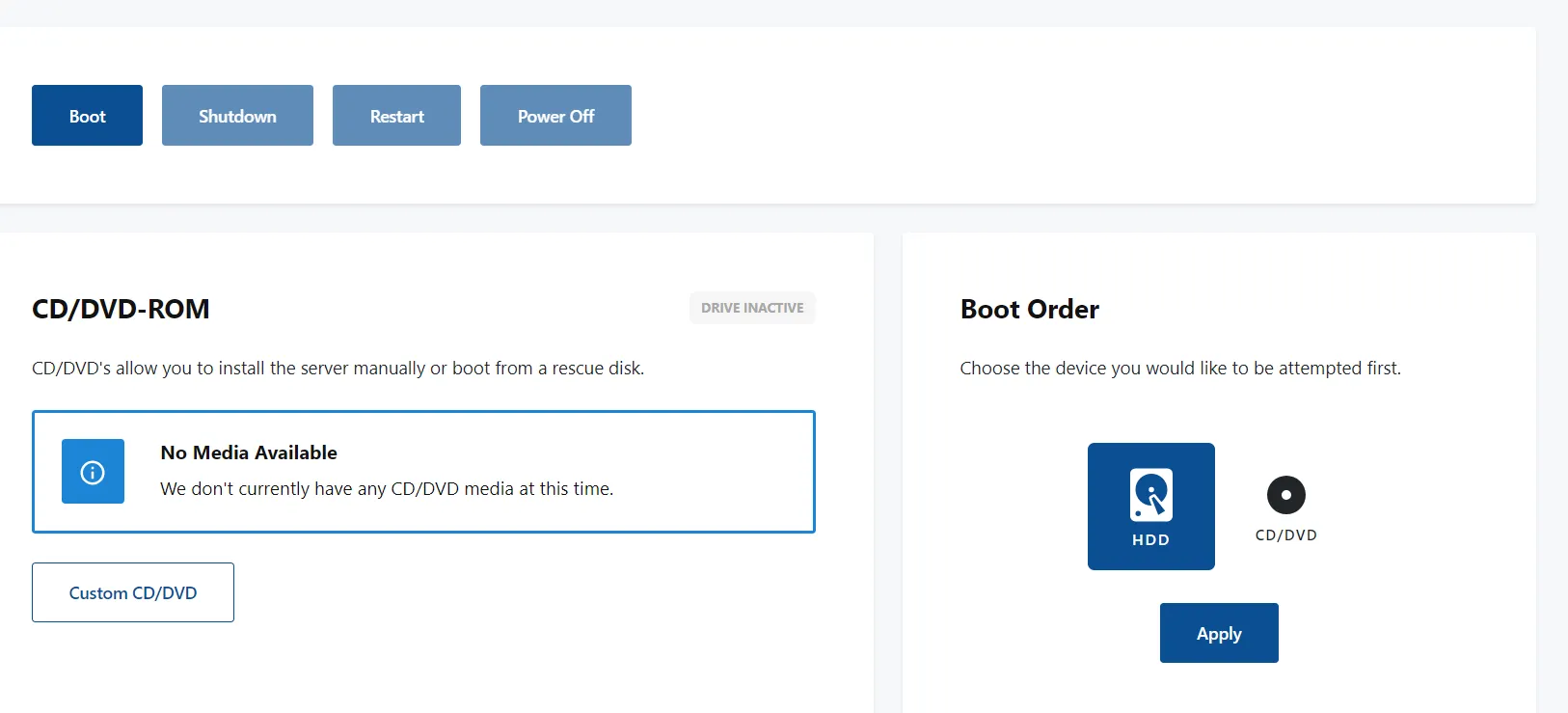
But I found the vendor’s VirtFusion panel didn’t provide pre-made ISO images for rescue mode to extract data—I needed to customize the ISO image.
So my last reply to customer service yesterday expressed that I would wait patiently and let them fix it slowly.

This morning, on a whim, I prepared to set up a custom ISO, enter rescue mode, access the filesystem, and extract files from my four sites. Below is my experience sharing from today’s tinkering.
Extracting Files in Rescue Mode
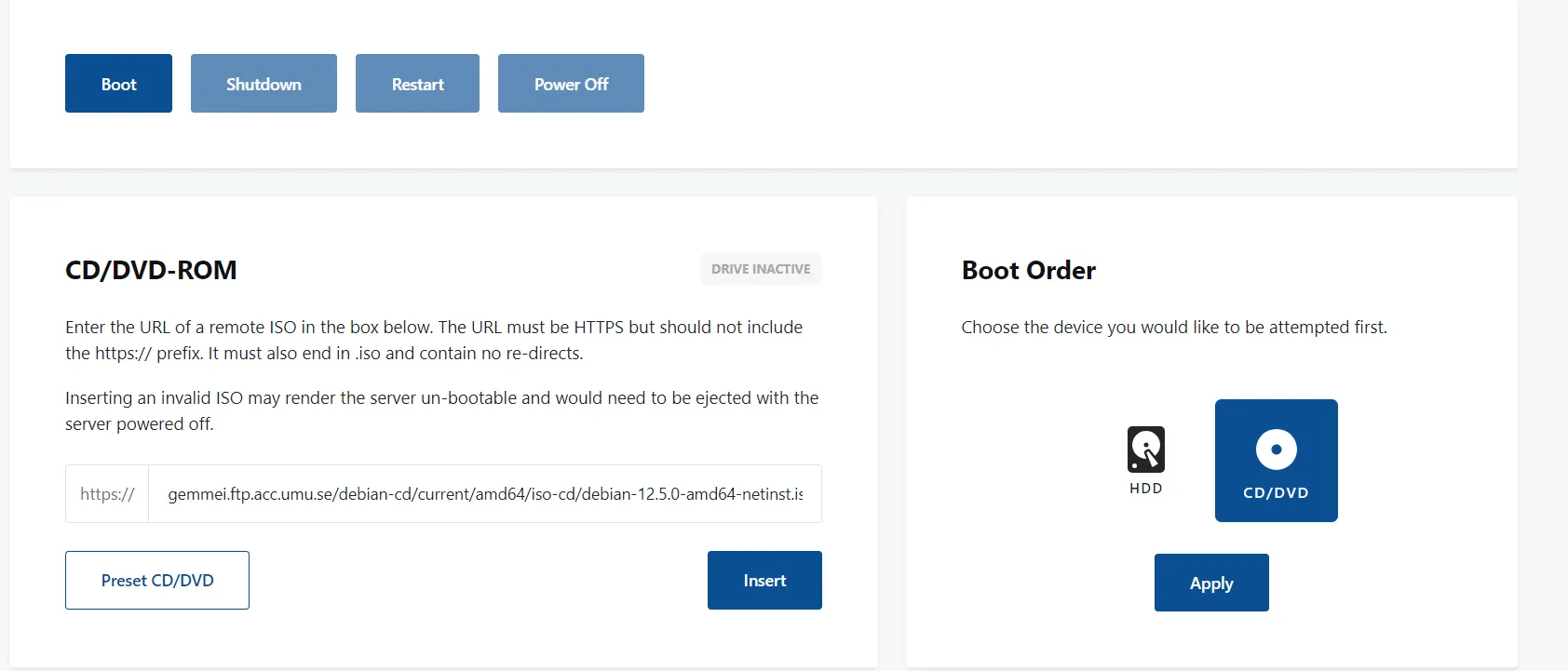
Set custom CD/DVD, link: https://gemmei.ftp.acc.umu.se/debian-cd/current/amd64/iso-cd/debian-12.5.0-amd64-netinst.iso, click Insert. Since this VPS runs Debian 12, I chose the Debian 12 CD image.
Set boot order to CD/DVD, click Apply, then shutdown and restart.
Open VNC interface. Select Advanced options.
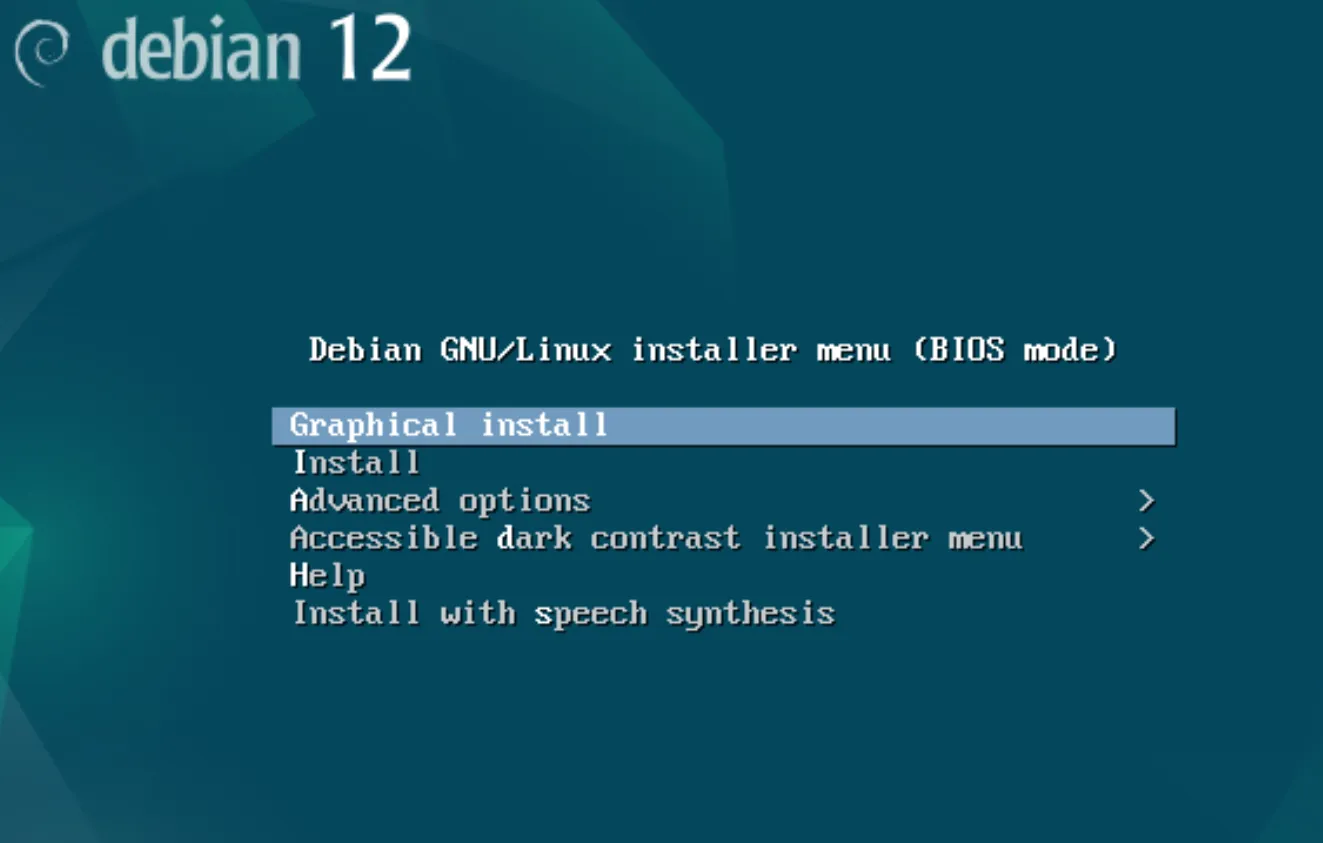
In the next interface, select Rescue mode.
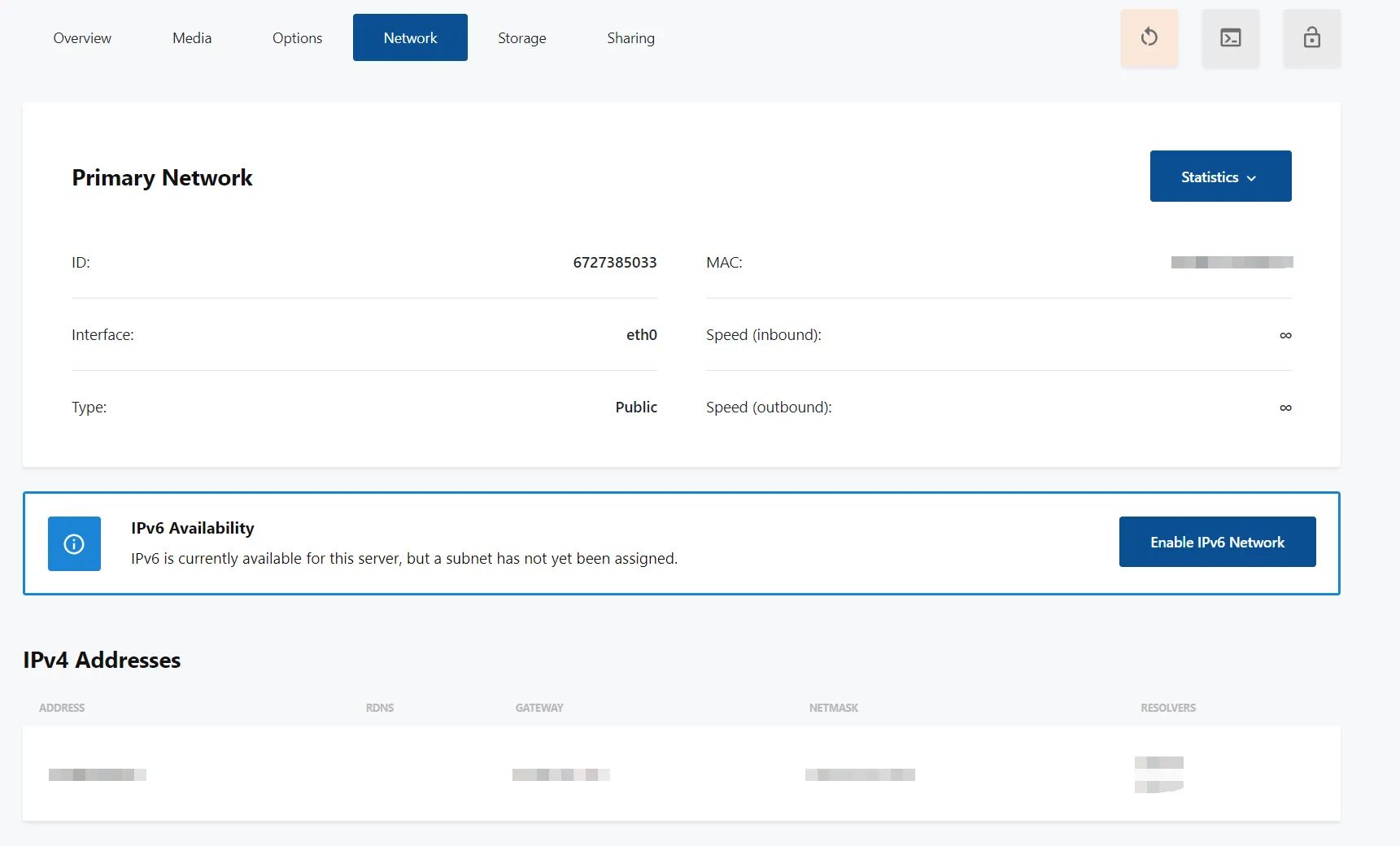
For manual network configuration, get the info from the VPS’s VirtFusion panel network page.
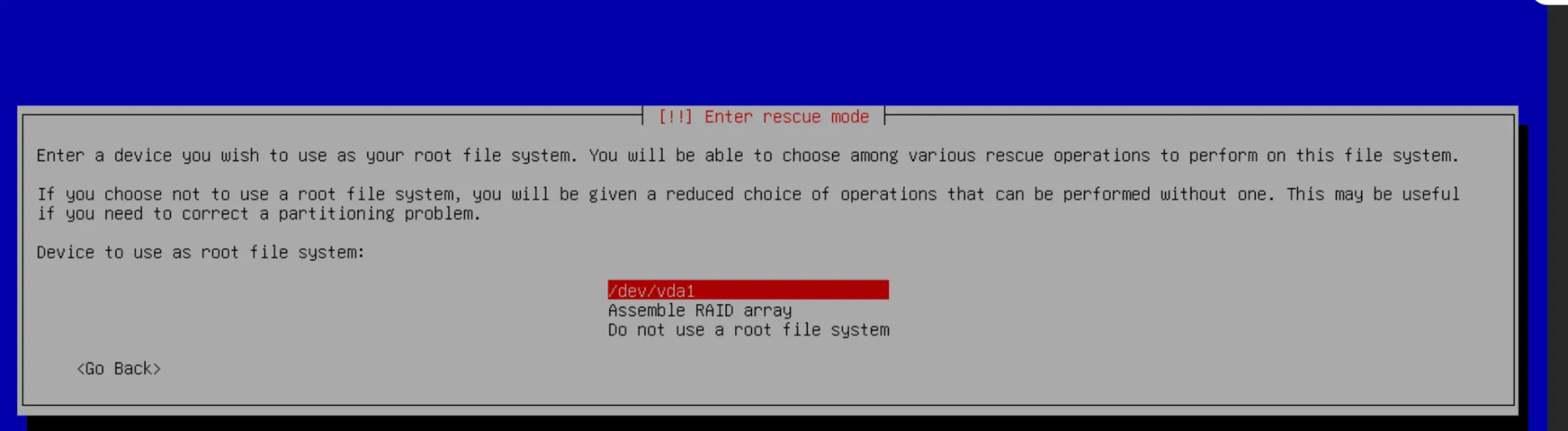
Then select /dev/vda1 as the filesystem.
Select Execute a shell in /dev/vda1 option.
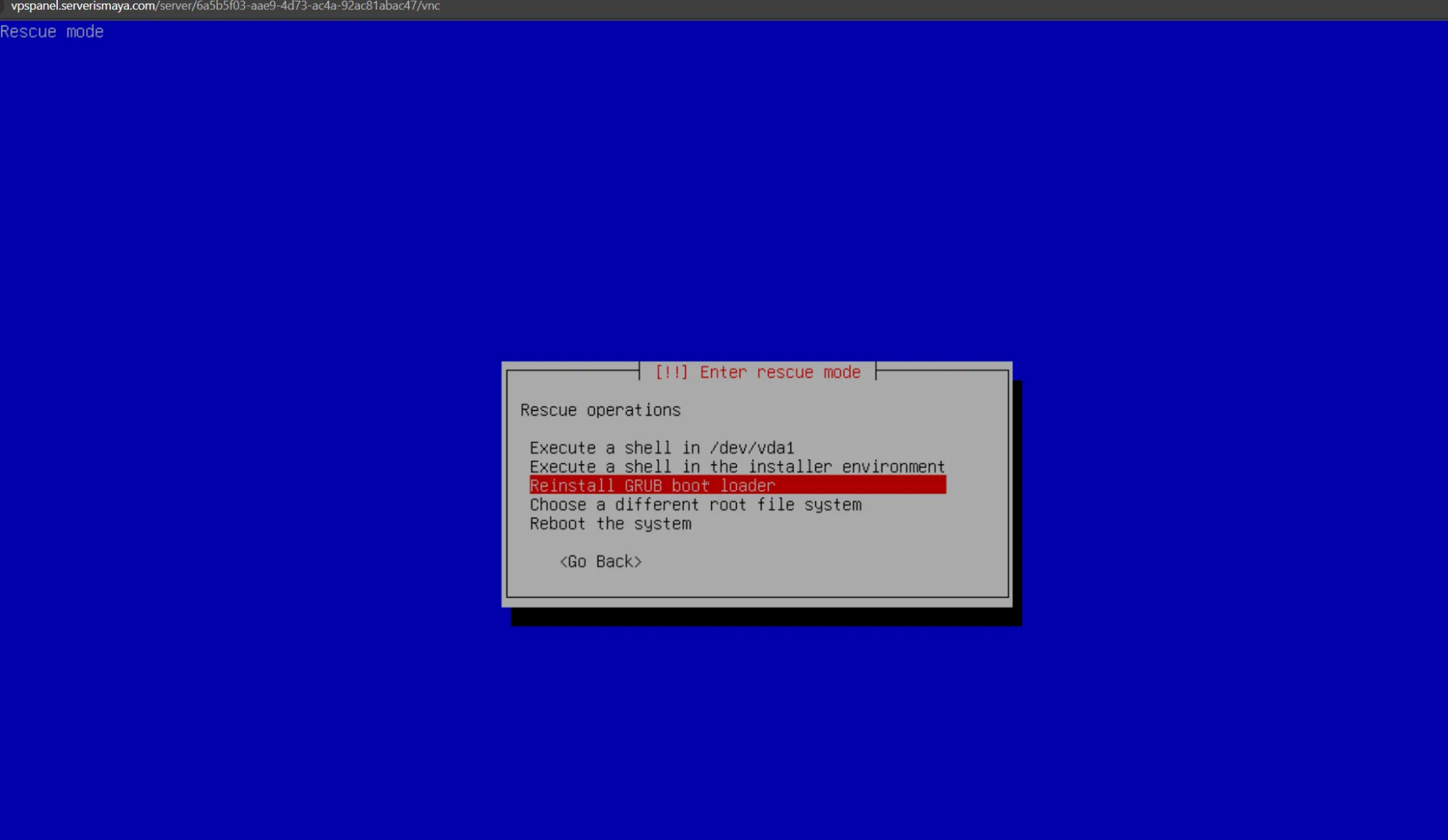
Successfully entered filesystem.

Since network is configured, internet access is available now.
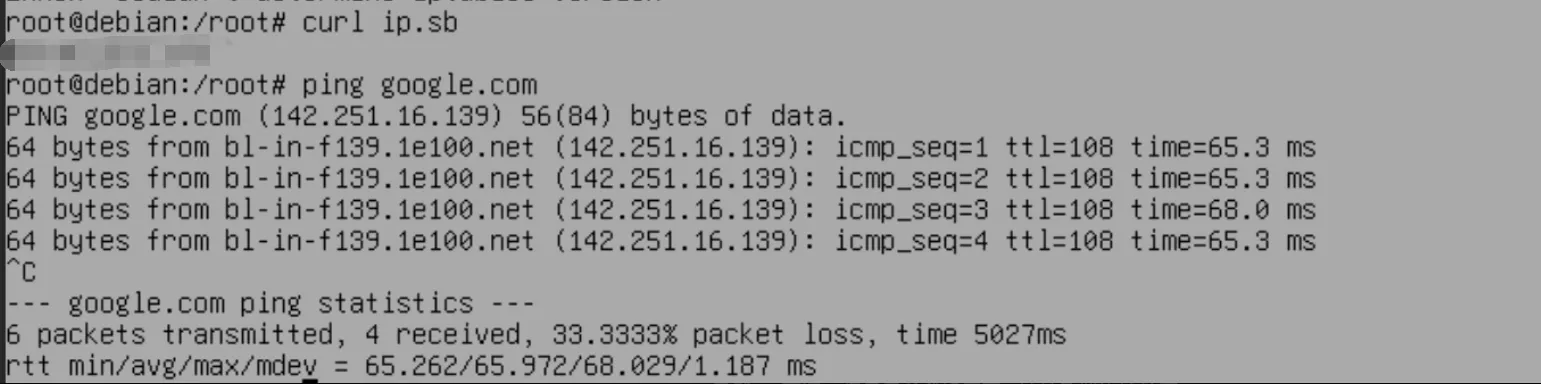
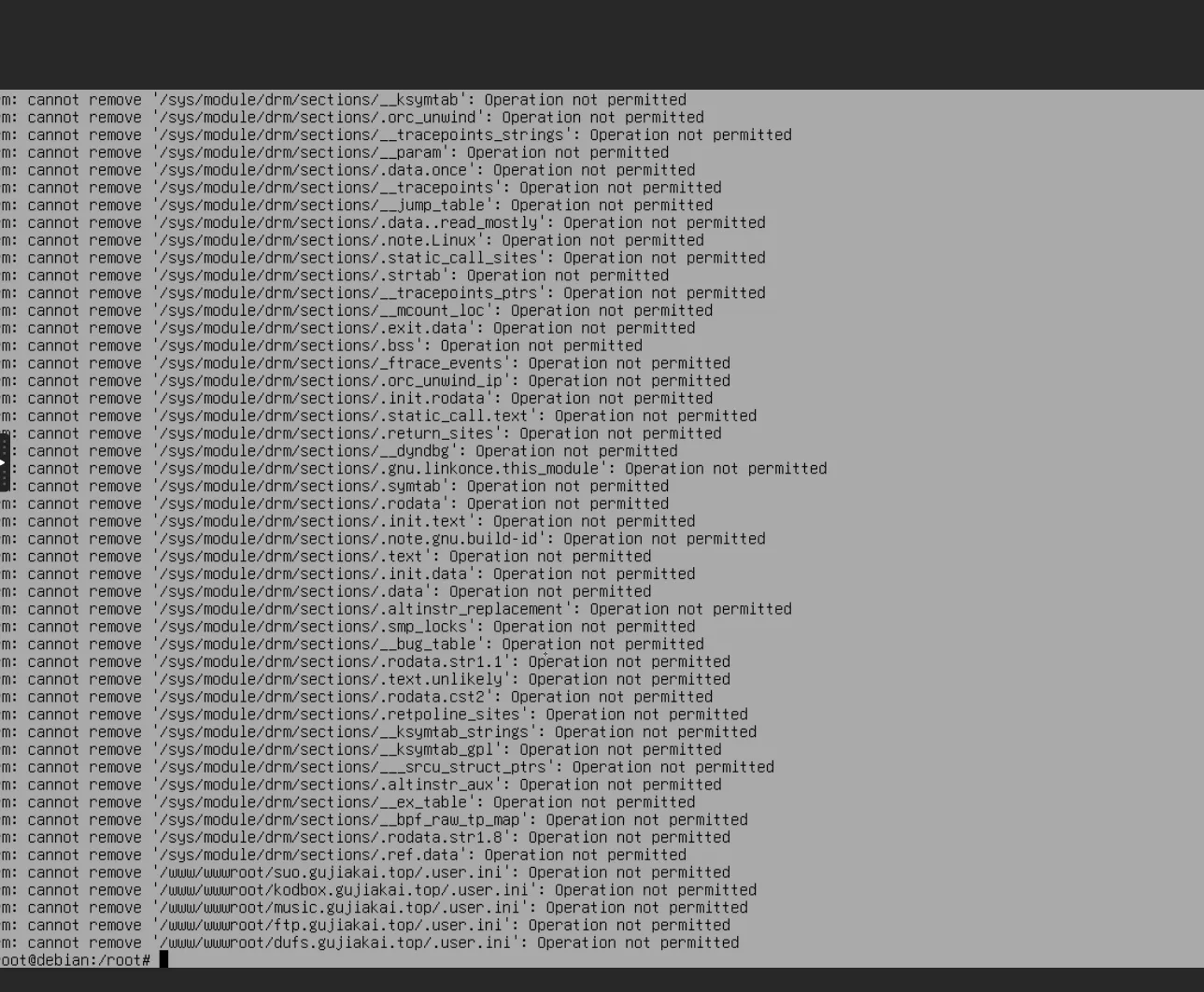
Use rsync command to sync files to remote server. Example:
|
|
After successfully bringing all four sites online on the remote server, it’s time to say goodbye to Ikihost! Machine performance isn’t bad, but this incident made me wary. Plus I have plenty of server resources on hand, so I won’t renew this Ikihost!
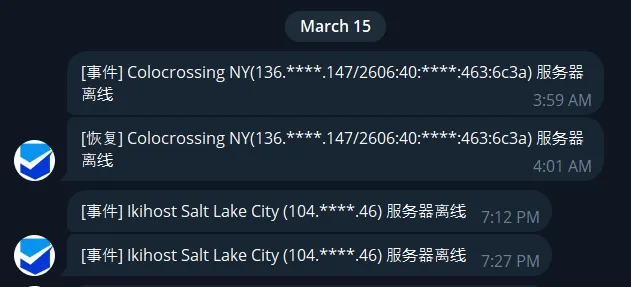
Offline for nearly two days, still not fixed. Vendor repair efficiency needs improvement.
Deleted Ikihost-related info from Nezha panel.

Customer service hasn’t replied today either. This ticket efficiency is concerning. All four sites have been transferred to RackNerd’s Black Friday big VPS.
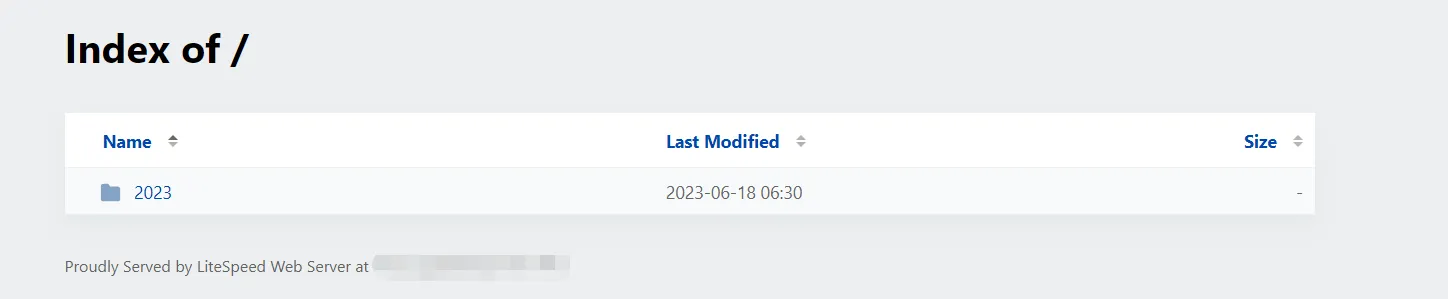
RackNerd 23 Black Friday big VPS already had CyberPanel installed. Today I briefly tried CyberPanel—not bad. Especially OpenLiteSpeed web server’s auto index feature for displaying file lists—I really like it, with the minimalist beauty of Caddy’s file_server.
Summary
This incident further reminds me to do good backup work for server-related files. Today I successfully retrieved files through VNC rescue mode. If someday files can’t be recovered due to VPS provider failures, that would be a big loss.
Also, important files or sites must choose reliable VPS providers for hosting. Of course I’m not saying Ikihost is completely unreliable, just from my personal experience, Ikihost has some distance from being reliable. Ticket speed, service quality—these are VPS providers’ foundation. If not done well enough, they can’t be called reliable.
Document Info
- License: Free to share - Non-commercial - No derivatives - Attribution required (CC BY-NC-ND 4.0)